01
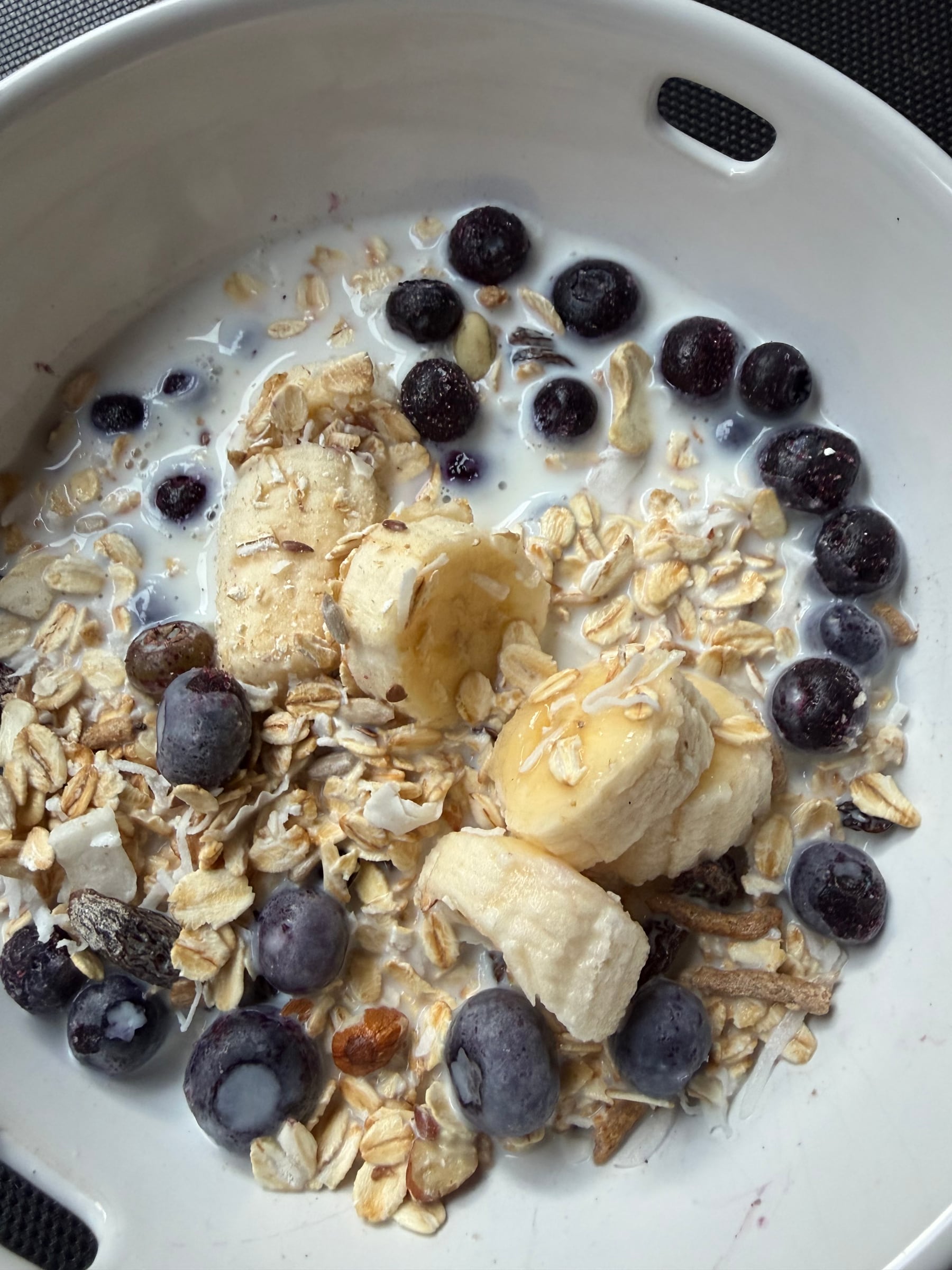
Start with a clear, focused meal photo.
A simple photo gives the estimator the best chance of recognising the foods in front of you. Keep the meal prominent and remove visual background noise.
- Place the meal in bright, even light and move unrelated objects, packaging, hands and utensils out of the frame where practical.
- Move close enough for the meal to fill the photo, while keeping the entire plate or bowl visible.
- Choose an angle that shows the ingredients and their portions clearly. If one food is hidden under another, reveal it before taking the photo.
- Check that the image is sharp and the food is not cut off before submitting it for an estimate.
02
Review what comes back.
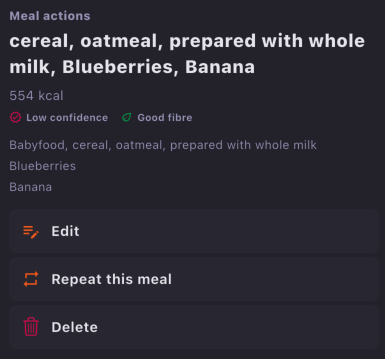
The estimate should match what you can see on the plate. Check the detected foods, calories and macros, especially when the result is marked low confidence.
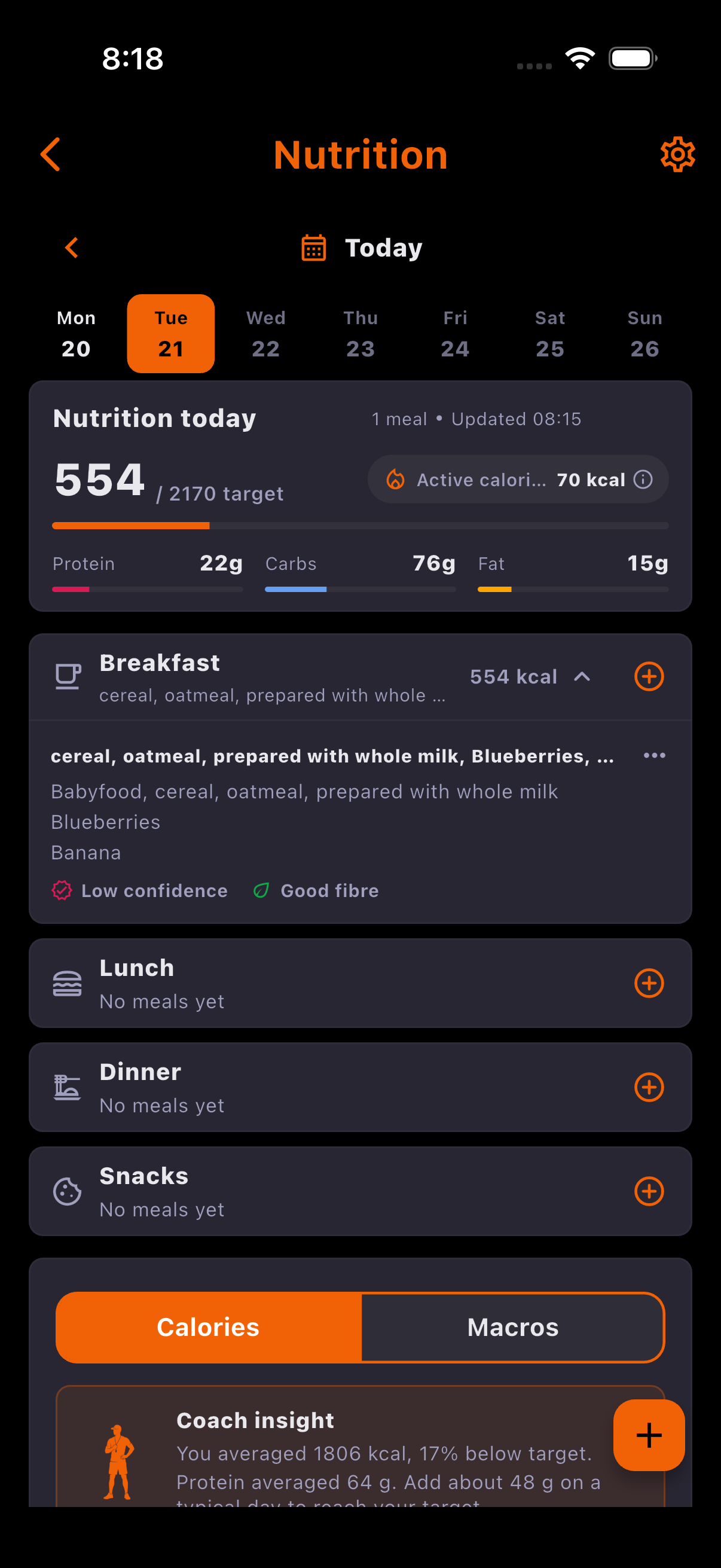
- Open Nutrition, choose the meal you want to add, and select the photo option.
- Take a new photo or choose a clear meal photo, then submit it for an estimate.
- Review each detected food and portion. Correct anything that is missing, misidentified or the wrong size, then save the meal.
03
You can edit the estimate.
An estimate is not locked in. If you notice an incorrect food or amount after saving, open the meal and update it.
- Find the saved meal in Nutrition and open its three-dot menu.
- Choose Edit from Meal actions.
- Update the foods or portions that need correcting, review the totals, and save your changes.